

Video Generation
# Video Generation in HARPA AI
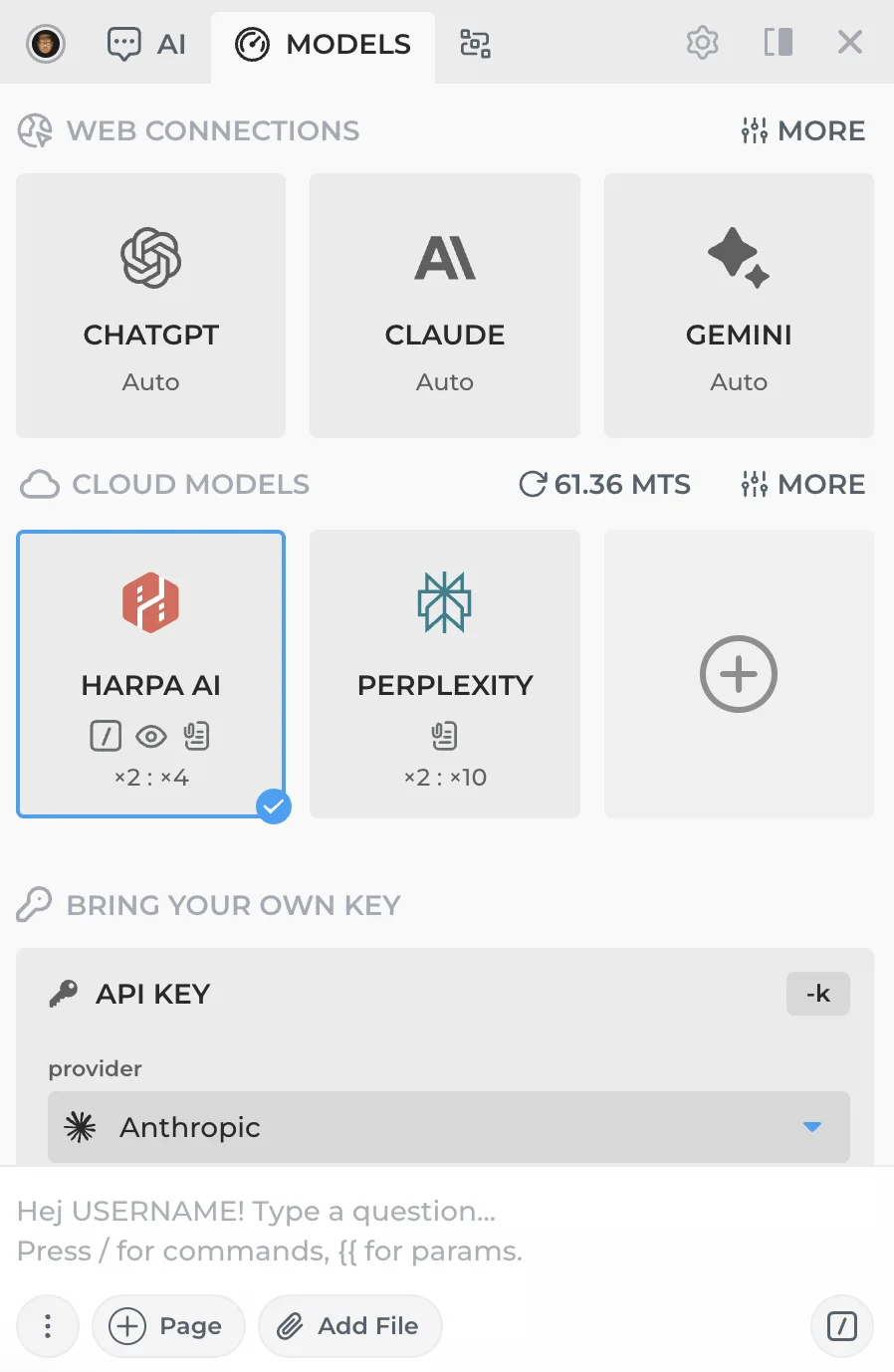
The default HARPA AI CloudGPT connection comes with built-in video generation. You can generate videos from a text prompt or by providing a reference image along with a prompt — all directly in the chat.
# How to Use Video Generation
- Make sure you have a HARPA AI CloudGPT connection selected.
-
Ask the AI to generate a video, e.g. "Generate a video of a cat playing piano" or "Create a short clip of waves crashing on rocks."
Or provide a reference image and describe what should happen in the video, e.g. "Animate this image — make the clouds move slowly across the sky."
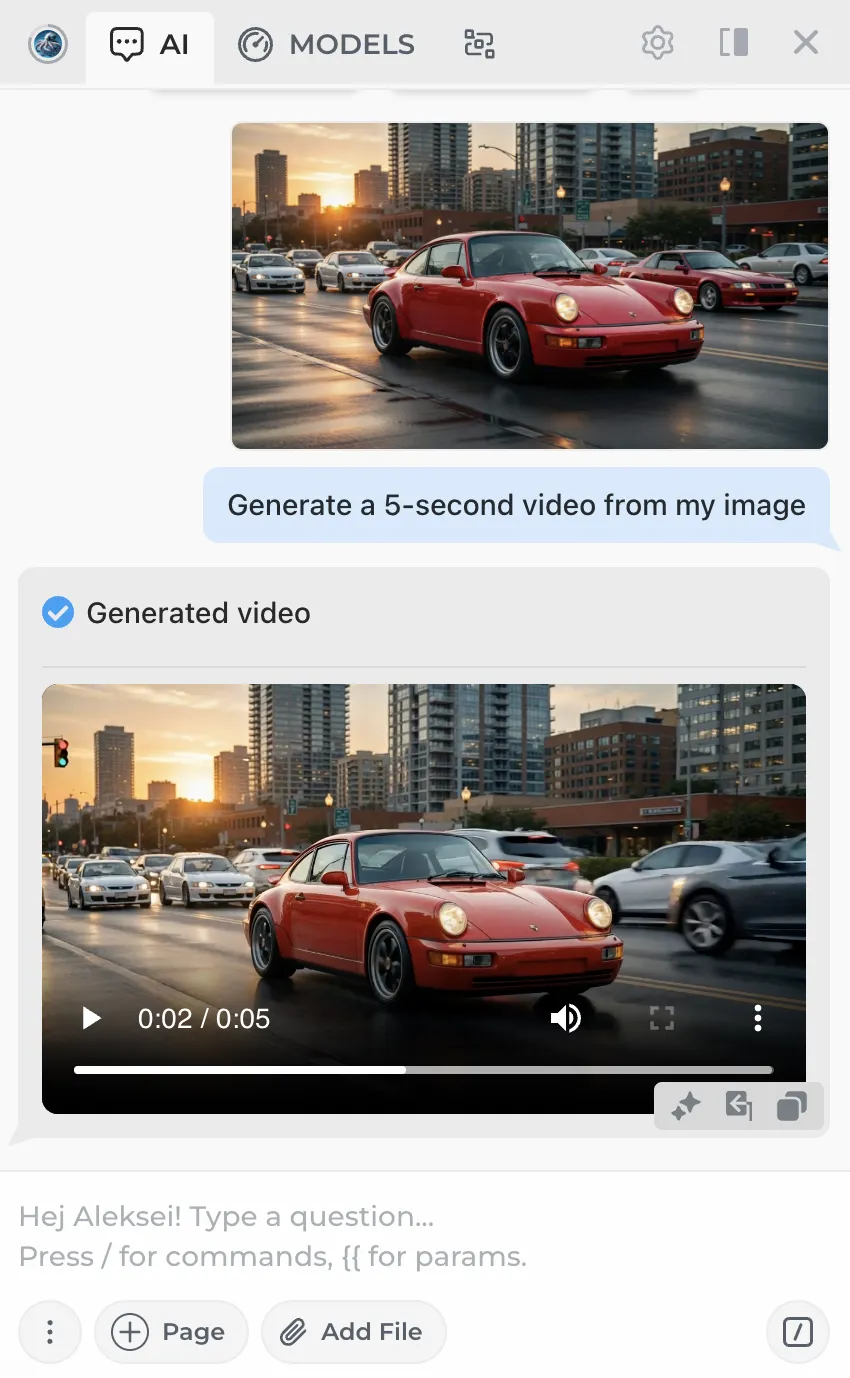
You can download the generated video using the player menu.
# Prompt Examples
The AI understands detailed descriptions — experiment with camera movements, lighting, and styles:
From text prompt:
Cinematic drone shot slowly rising above a foggy mountain forest at sunrise, golden light rays piercing through the trees, smooth upward camera movement, 5 seconds
Time-lapse of a flower blooming in a dark studio, single spotlight illuminating petals unfolding, shallow depth of field, macro lens perspective
From image + prompt:
Animate this scene — add gentle wind blowing through the grass, clouds drifting slowly in the background, birds flying across the sky
Make the water in this photo come alive — add flowing ripples, subtle reflections shimmering, and leaves gently floating downstream
Stylized & artistic:
Ink wash painting coming to life — a dragon slowly unfurling from a scroll, traditional Chinese brush strokes animating fluidly, muted earth tones with red accents
Retro VHS footage of a neon-lit city street at night, slight camera shake, analog scanlines and color bleeding, 80s synthwave atmosphere
Feel free to mix and match these parameters to get the result you want.
 NEXT POST
All rights reserved © HARPA AI TECHNOLOGIES LLC, 2021 — 2026
Designed and engineered in Finland 🇫🇮