Run a command on many tabs
Thirty product pages, one command, one table of answers.
On this page
Open the pages you need, pick a command, and HARPA runs it on every tab: product pages, profiles, listings or articles. All the answers come back in one list that you can retry, open as a chat or export to a spreadsheet.
# Start a run
- Open the pages in tabs, for example six product pages on the same shop.
- Start Run on tabs… from a command:
- in the command list (type / in the chat), hover your command, click Edit, then the ⋮ menu,
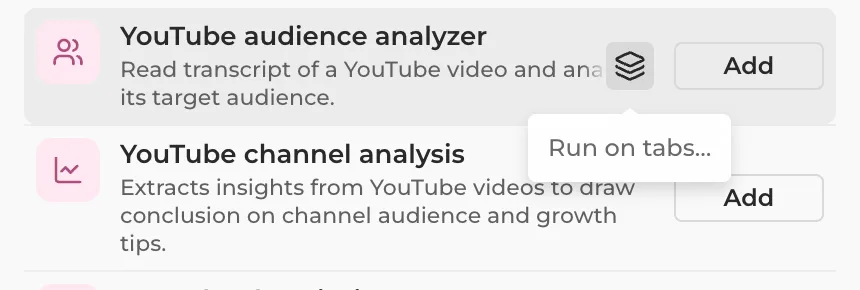
- or switch to Automate, click Browse gallery and hover any command: the layered button is Run on tabs… A gallery command you haven't added yet is added when you run it.
# Pick the tabs
Tabs from every window are listed by site. Tabs Like this page (same site, same section) are already ticked, other sites stay folded.
- Tick or untick tabs, or use Like this page, All and None. Filter by title or address narrows a long list.
- Answer the command's Questions, if it has any. They are asked once and used on every tab.
- Choose Run at a time: 1 to 5 tabs run together in the background. More is faster and sends more AI requests at once.
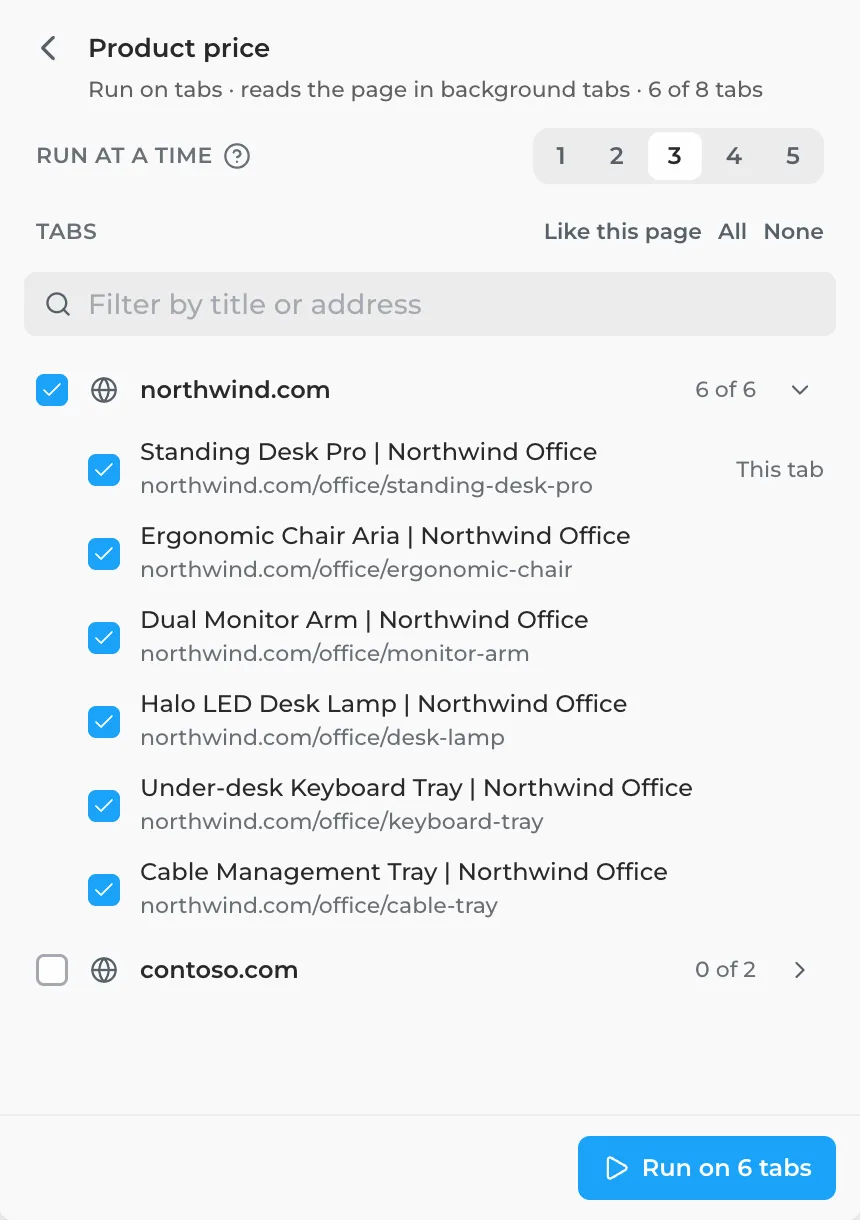
Test on one tab first. Tick a single tab and click Run on 1 tab. When the answer looks right, open Run on tabs… again and run the rest.
# Run and read the results
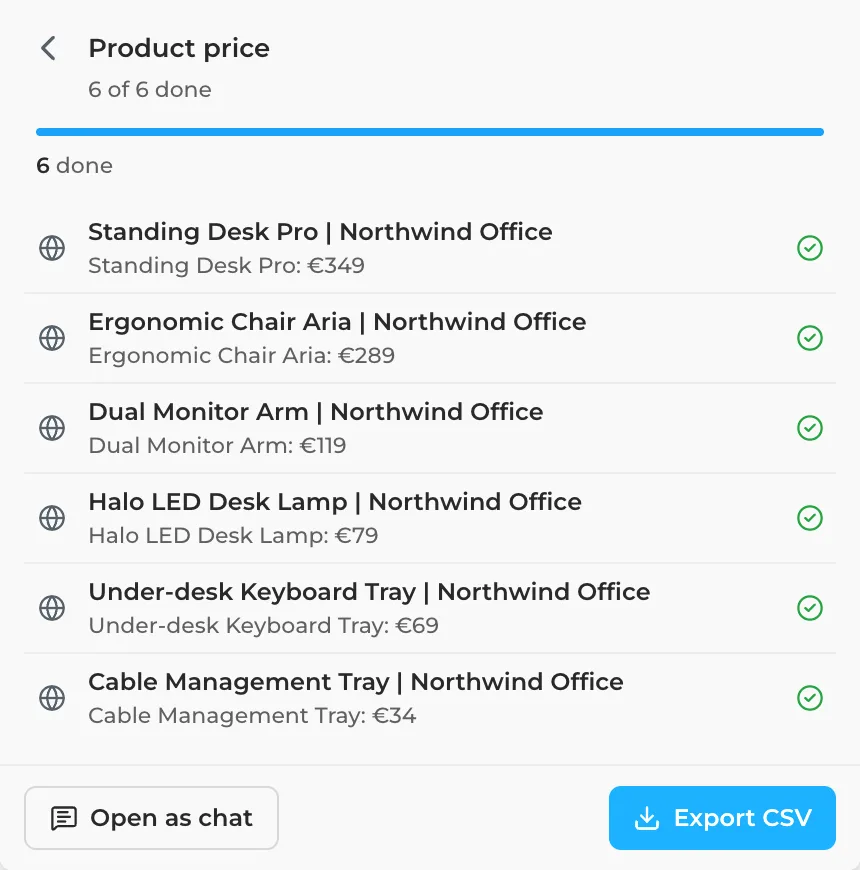
- Click Run on 6 tabs (the button counts your tabs). Each row shows Waiting, Running… and then Done or Failed. Stop ends the run; closing the panel doesn't.
- When it finishes, each row shows the first line of its answer. Click a row for the full answer, Open page, Open run chat or Copy.
- Retry runs the failed and stopped tabs again with the same answers. Open as chat puts every page's answer in one new chat. Export CSV saves a spreadsheet with the page, URL, status and result of each tab.
If every answer is a JSON object, the CSV gets one column per key: a command that returns {name, price, rating} gives
you a ready price table.
# Find it later in the Inbox
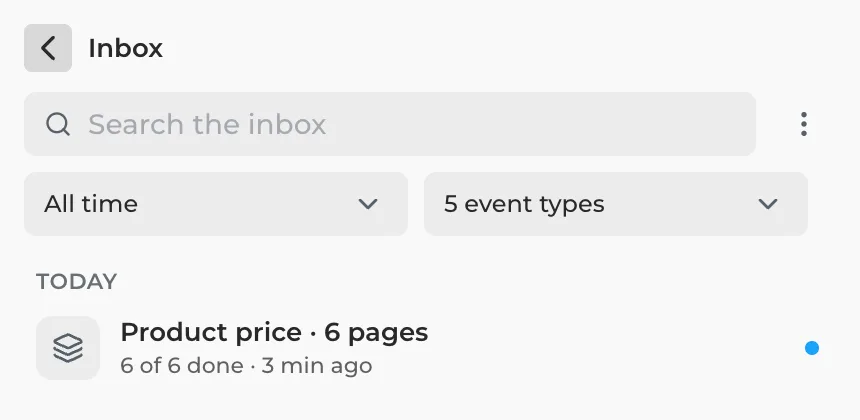
Each run is one item in the Inbox, named after the command and the number of pages. Open it for the same results view. HARPA keeps your last 20 runs.
# Good to know
- Commands that only read the page run in background tabs. A command that clicks or types runs one at a time and brings each tab to the front: leave the window alone until it ends.
- A tab Chrome put to sleep, or one opened before HARPA updated, is marked Reloads first: unsaved changes on it are lost.
- Each tab is a normal command run: on HARPA's cloud models it uses cloud credits, see Cloud models and credits. Runs use HARPA AI or your own OpenAI key, never a web session like ChatGPT.
- A tab that takes more than 5 minutes fails, and the others carry on. If your plan's limit is reached, the waiting tabs stop.