Build workflows on the flow canvas
See every step, test it on a real tab, then let it run.
On this page
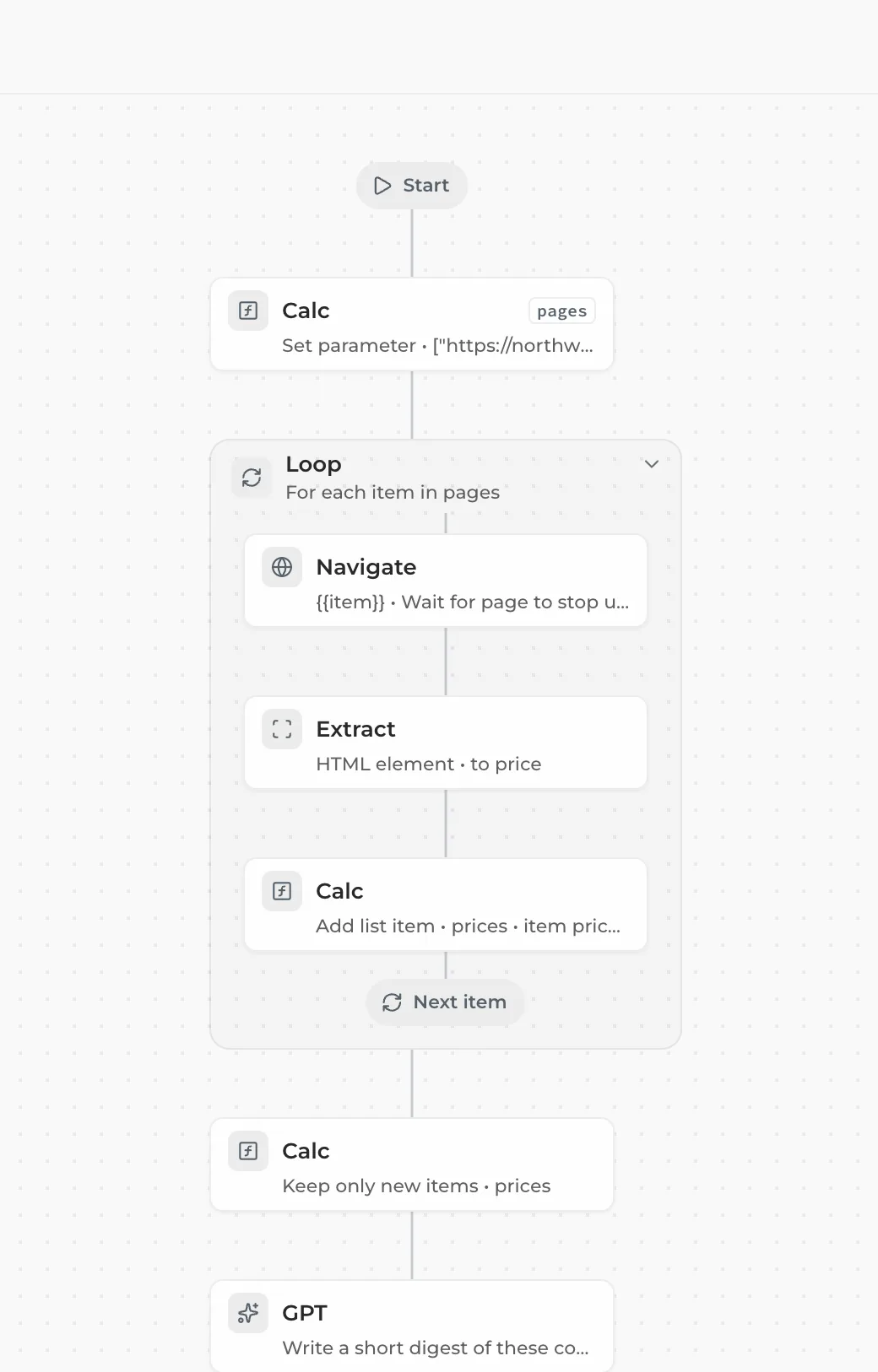
A HARPA command is a list of steps: read the page, ask AI, click, wait, send. The flow canvas draws those steps as a flow you can see, rearrange and test on a real tab before it runs on its own.
# Open a command on the canvas
- Type / in the chat, hover your command and click Edit. New to commands? Start with Custom commands.
- Click Canvas under the steps.
- In a wide panel the canvas opens in place, with Back and Open in tab. Otherwise it opens in its own tab.
You can also open it from an automation: Automate, click the automation, then Steps. A built-in command opens read only: click Clone to make your own copy.
# Read the flow
- Steps run from Start to End, top to bottom. Each box shows the step type and a one-line summary.
- Loops are boxes that read "For each item in …" and end with Next item. Groups are boxes too.
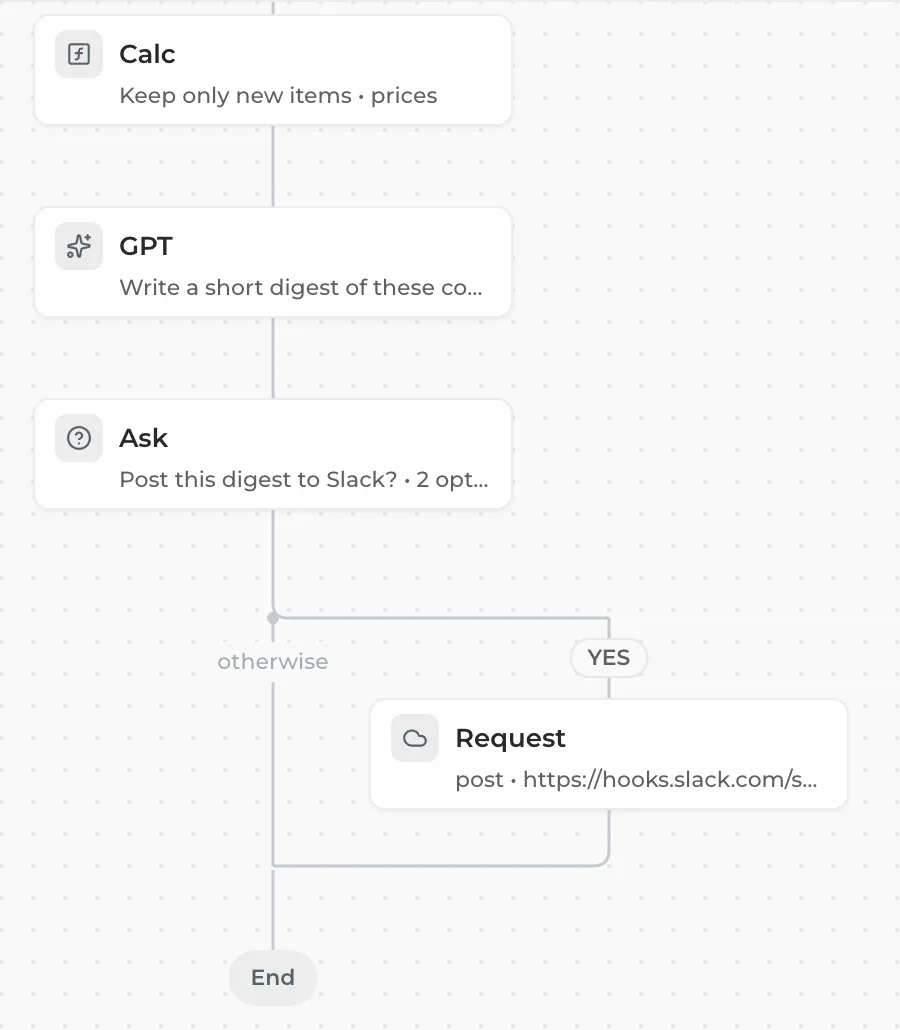
- Branches split into lanes: a step that runs only on a condition gets its own lane, the rest is marked otherwise.
- A warning icon flags a problem, like No element picked or a jump to a label that doesn't exist.
Zoom with − and + at the bottom left, or Fit to see the whole flow. Collapse branches folds long flows.
# Add and change steps
- Hover the line between two steps and click + (or select a step and press A).
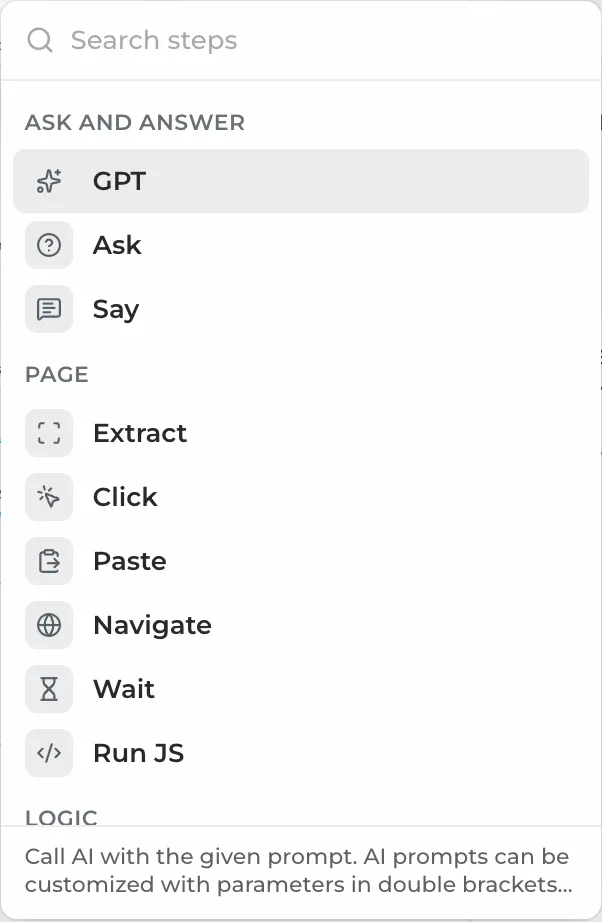
- Pick a step, or type to Search steps:
| Group | Steps |
|---|---|
| Ask and answer | GPT, Ask, Say |
| Page | Extract, Click, Paste, Navigate, Wait, Run JS |
| Logic | Group, Loop, If / else, Jump, Stop, Calc |
| More | Command, Request, Export, Prefill, Clear, AI connection, Control |
- Click a step to edit it in the panel on the right: its fields, a Step label (to jump to it) and a Run condition (empty means Always).
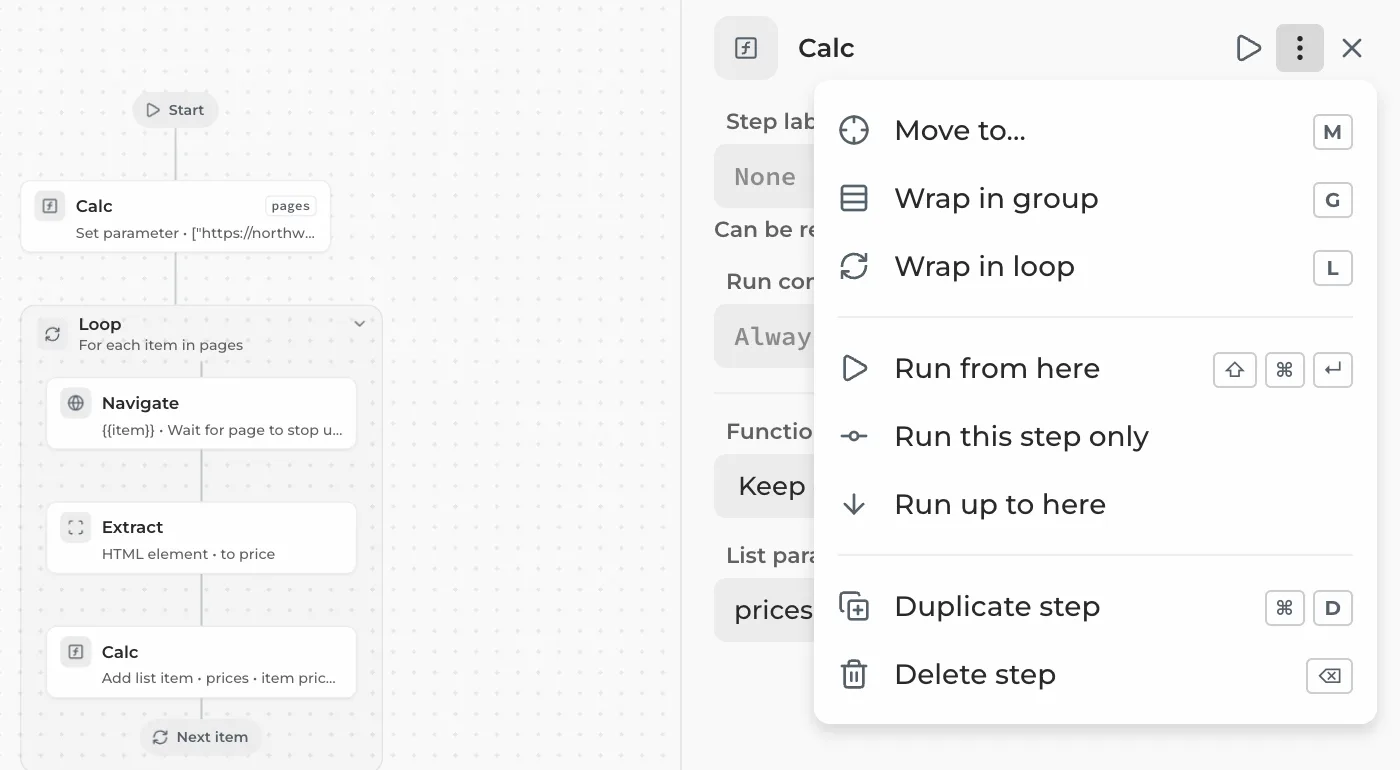
To move a step, drag it, or use Alt+↑ and Alt+↓. The step's ⋮ menu (or right-click) has Move to…, Wrap in group, Wrap in loop, Duplicate step and Delete step. Shift+click selects several steps.
Branch the flow. Add an If / else step for two lanes, one when its condition holds and one otherwise. An Ask step with options can get one lane per answer: Add lanes for … options in its ⋮ menu.
Undo and Redo sit in the top bar (Ctrl+Z / ⌘Z). Save keeps your changes (Ctrl+S / ⌘S), Discard drops them.
# Pick elements on the page
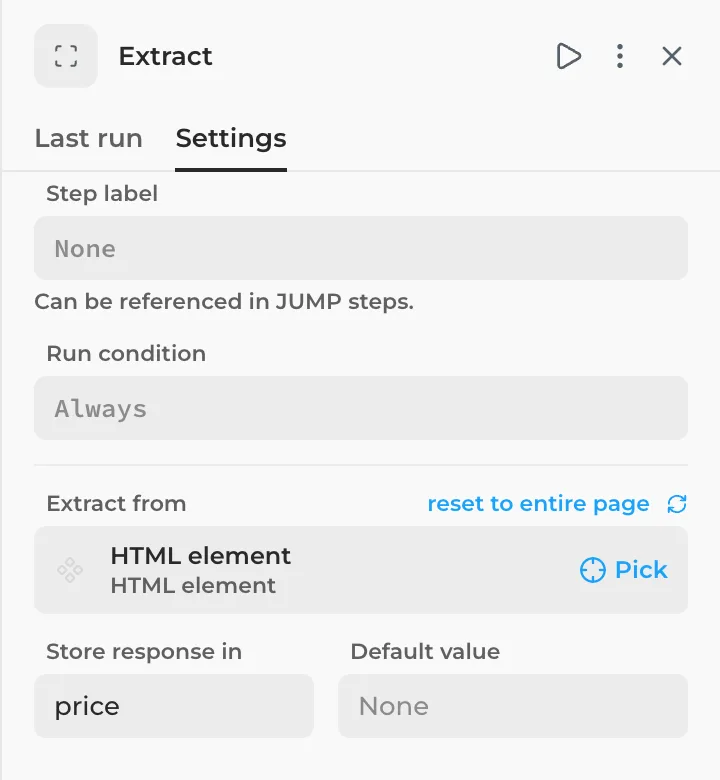
Click, Extract, Paste and Wait steps work on an element of the page.
- Open the step and click Pick next to its element.
- The page comes to the front with a hint like "Pick what to extract · Esc to cancel".
- Click the element. For Extract and Wait, choose the exact element from the list that appears.
# Test-run on a real tab
- Check the tab in the top bar, like in northwind.com. Click it to pick another tab.
- Click Test run. The first time, HARPA lists what the test really does (AI prompts, clicks, opened pages) and asks you to confirm with Run.
- Watch the steps light up. Each one is marked done, skipped or failed, and the path the run took stays dark.
- Click a step and open Last run to see its Output, the loop Item and the Duration.
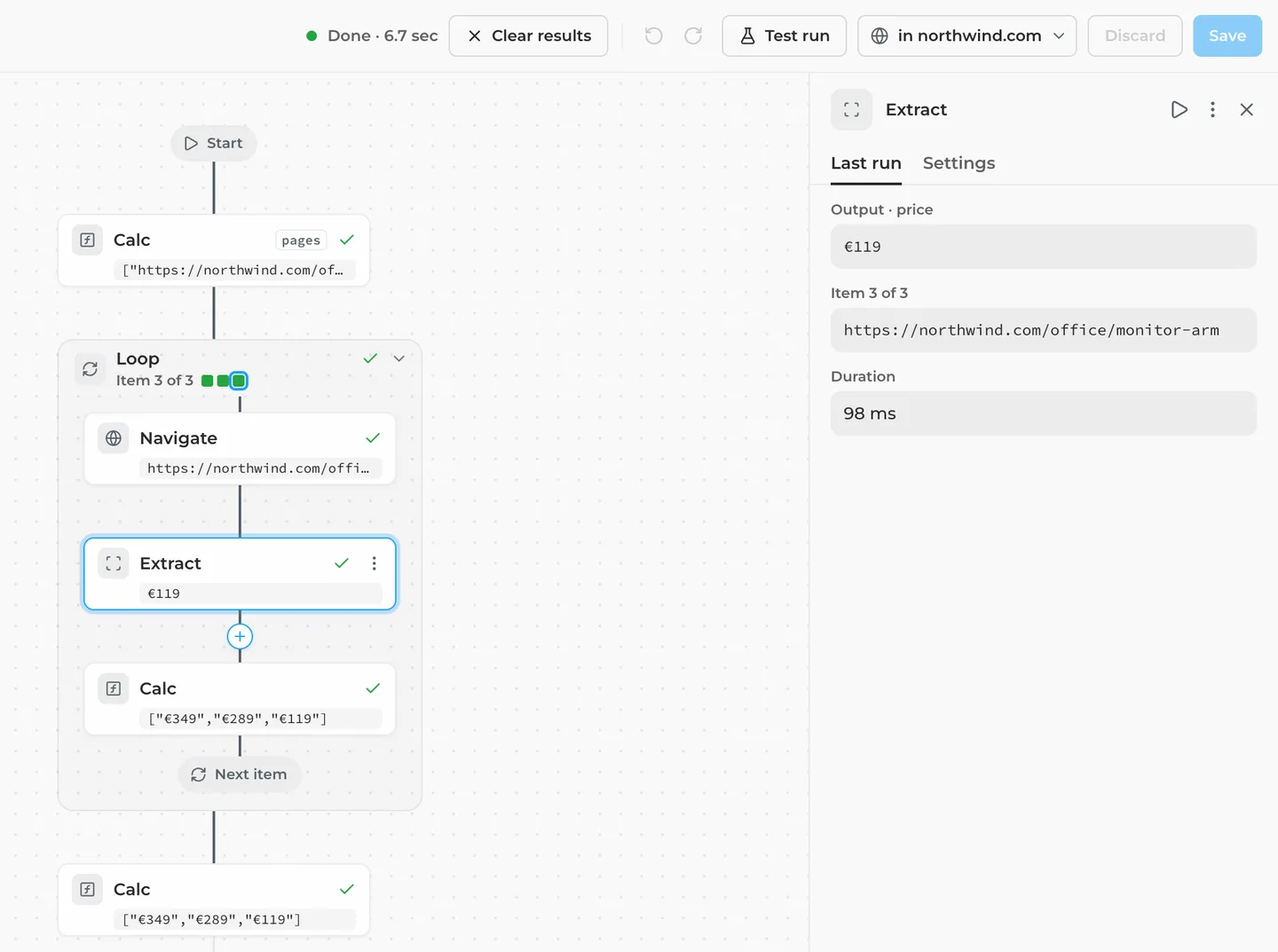
Test a part of the flow from a step's ⋮ menu: Run from here, Run this step only or Run up to here. When the test reaches an Ask step, answer it right in the side panel and click Continue. Clear results resets the view.
A test is a real run: AI steps use your model and, on HARPA's cloud models, cloud credits.
# Wait for your answer in the Inbox
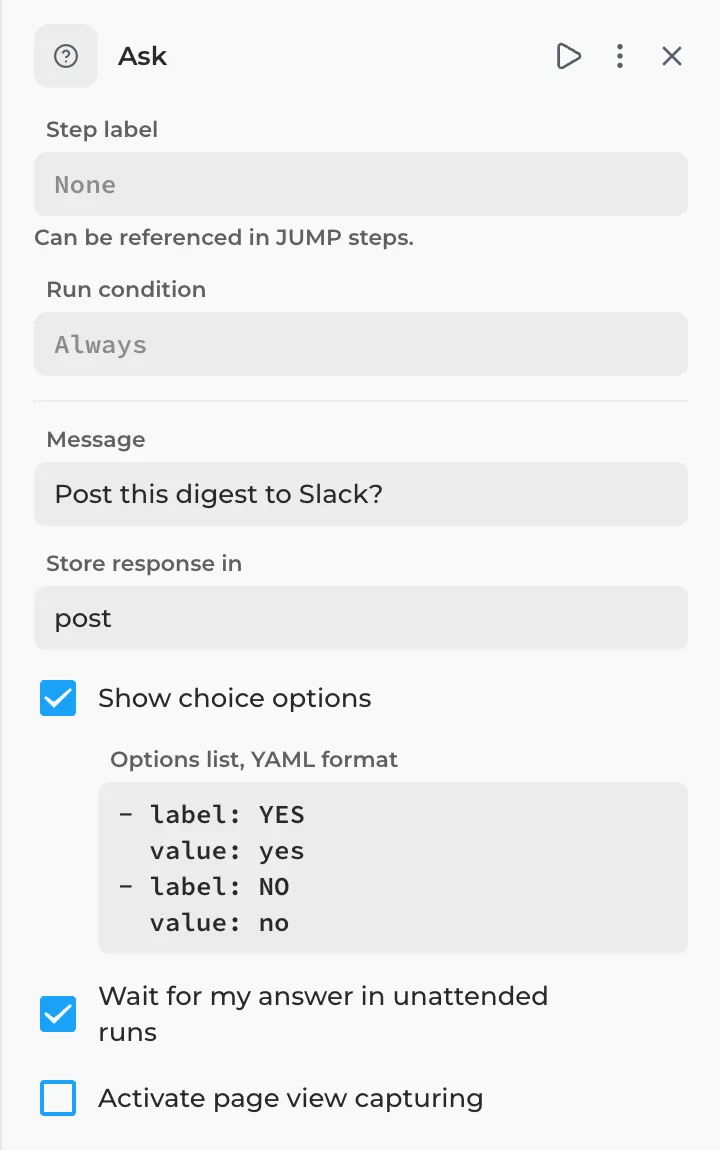
An automation that runs on a schedule can still check with you before it acts, like "Post this digest to Slack?".
- Add an Ask step with options, for example YES and NO.
- Tick Wait for my answer in unattended runs.
- Put the action that needs approval after it, with a run condition such as
{{post}} = yes.
When the automation reaches the step, the run waits in the Inbox under Needs you for up to 24 hours. Answer there and it carries on. With the box off, an unattended run ends at the Ask step.
# Keep only new items
For digests and lead lists, add a Calc step with the function Keep only new items and the list to filter. The step drops the items this automation has seen before, so a daily run never repeats itself.
- It remembers the newest 1,000 items, and only in automation runs: a test run treats every item as new.
- To start over, open the automation's ⋮ menu and click Reset state.