Get started with HARPA AI
Install, open HARPA on any page and pick your AI model.
On this page
HARPA is an AI agent for your desktop browser. It chats with GPT, Claude, Gemini and other models beside any page, runs ready-made commands, and watches pages and runs tasks for you on a schedule.
# Install and open HARPA
- Add HARPA to Chrome, Edge, Brave, Opera or another desktop Chromium browser from the Chrome Web Store.
- Pin it to the toolbar, so it is always one click away.
- Open any page and click the HARPA icon, or press Alt+A on Windows (Ctrl+A on Mac). The panel opens beside the page.
The panel has two tabs at the top: Chat for talking to AI and Automate for monitors and scheduled tasks.
# Ask about the page
- Type a question in the box at the bottom.
- Click Page to give the AI this page's text, or just ask: with Auto page access on, the AI reads the page when it needs to.
- Press Enter. The answer appears in the panel, with tables, lists and links.
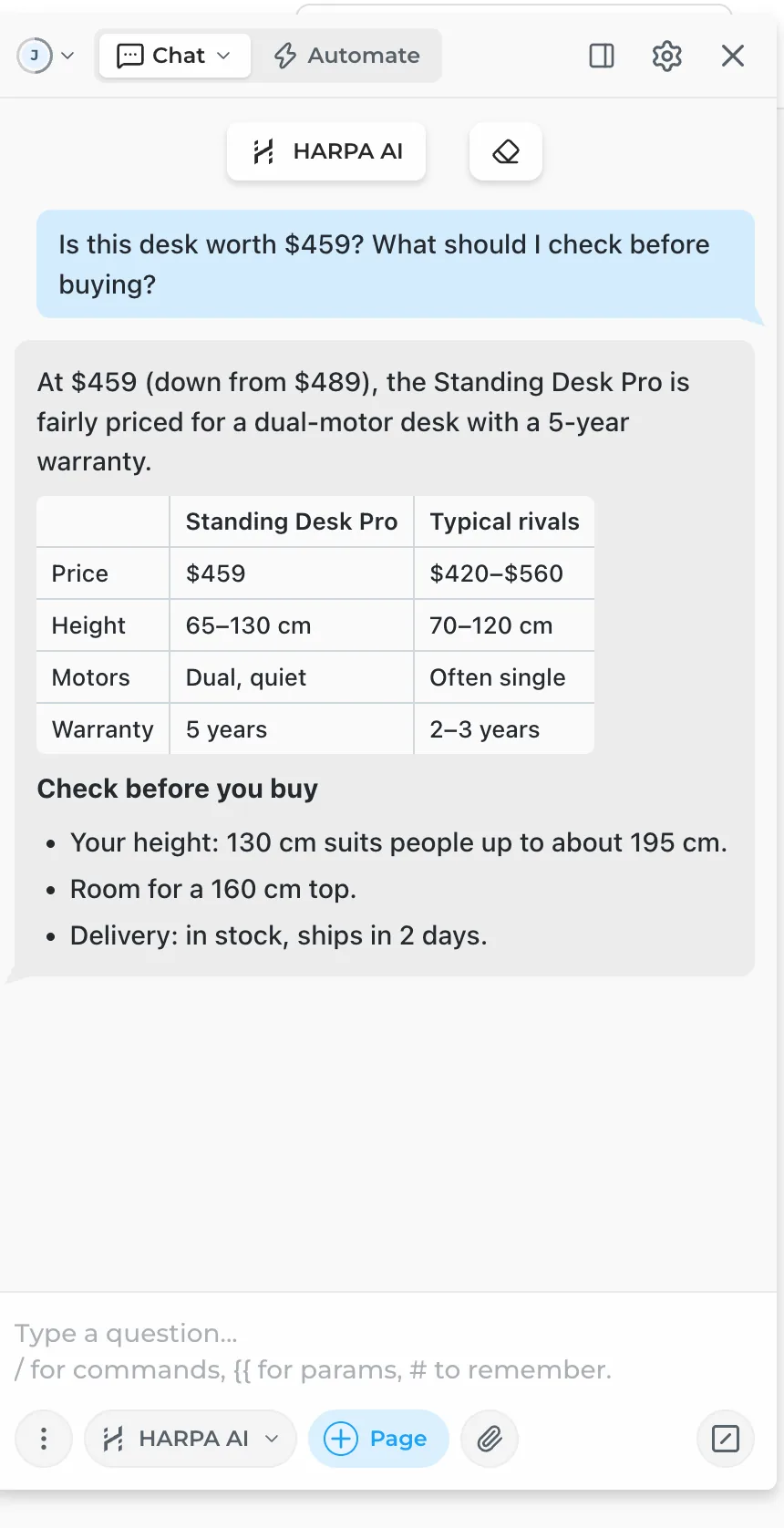
Type / to see the built-in commands: summarize, explain, extract data, reply, rewrite and more. The suggestions under "On this page" change with the site you are on.
# Pick your AI model
Click the model button next to Page to open the model menu. Each chat keeps its own model, so you can switch per chat.
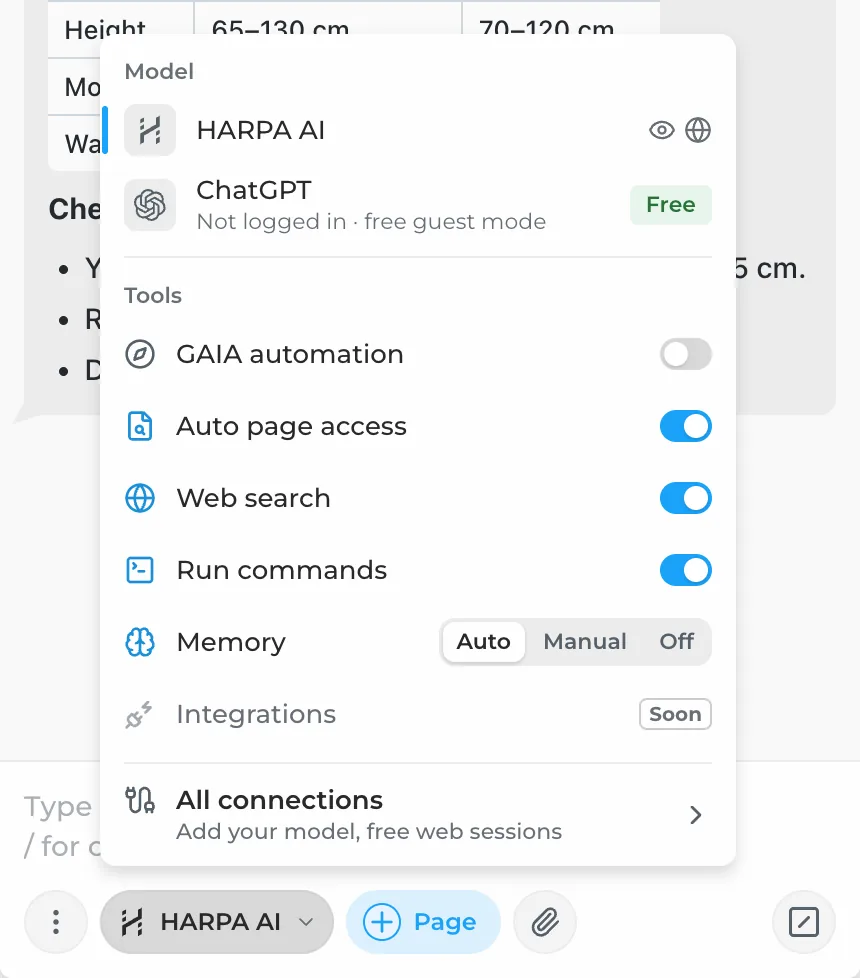
- HARPA AI and the other cloud models run on HARPA's cloud, with no keys to manage. Cloud models and credits
- Web connections use your own ChatGPT, Claude, Gemini or Grok login, free. Web session connections
- Your API keys connect OpenAI, Anthropic, Google, xAI or a local model. API connections
The same menu turns tools on or off for the chat: browser automation, page access, web search, running commands and memory. You decide what HARPA sees. All connections opens the full list.
# Find anything with the palette
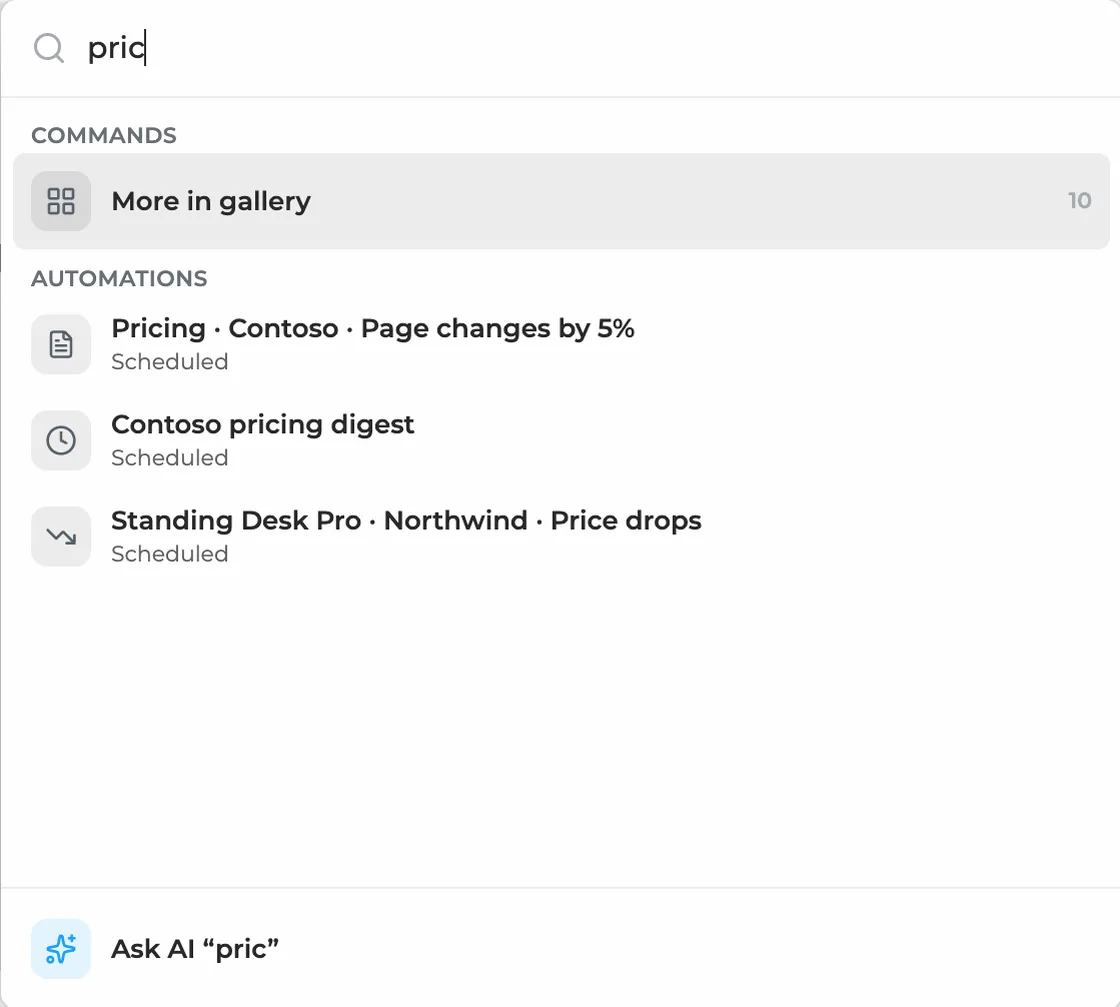
Press Alt+K on Windows (Ctrl+K on Mac) on any page. Type a few letters to find a command, a chat or an automation. No match? Ask AI.
# Put a page on autopilot
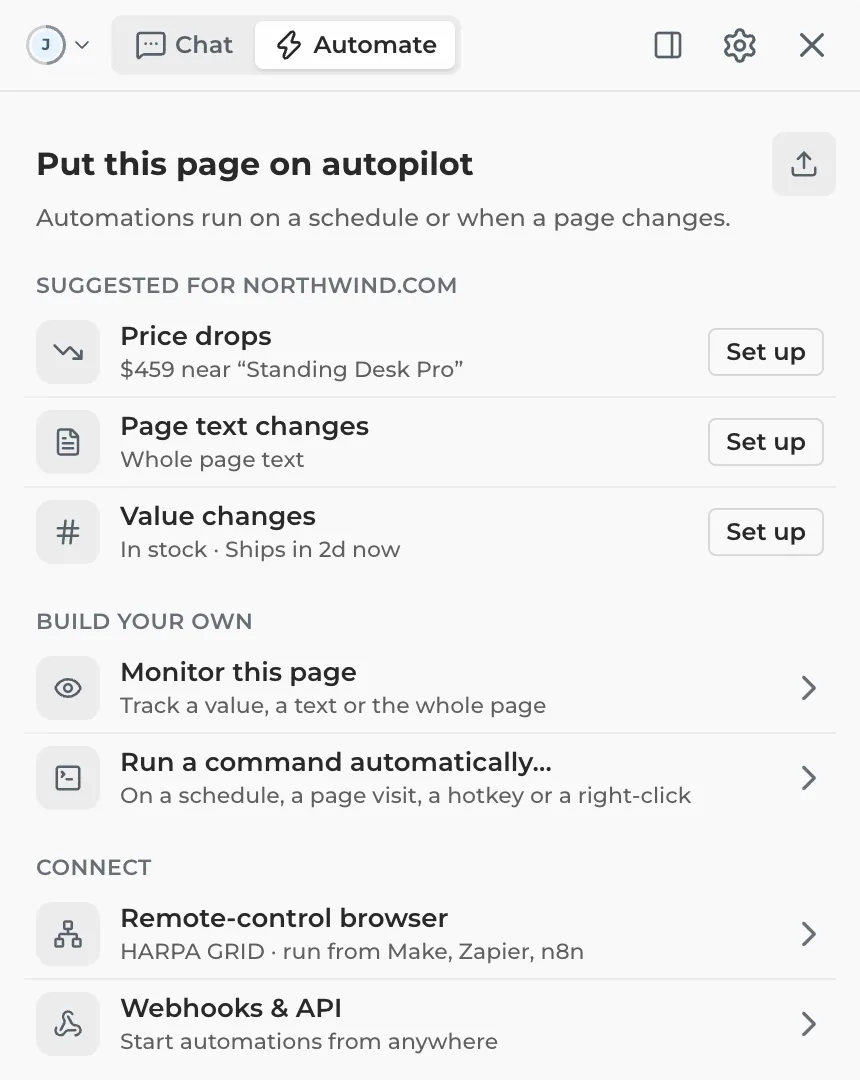
Switch to Automate. HARPA suggests what to watch on the page you are on, like a price or the page text.
- Click Set up next to a suggestion, or Monitor this page to pick something yourself.
- Choose how often to check and how to tell you.
- Click Start monitoring. Changes land in your Inbox and as a browser notification.
Monitors and scheduled commands run in your browser while it is open. More in Automations.
# Where to go next
- Price monitor: hear when a price drops.
- Competitor tracking: know when a rival's page changes.
- Run commands on a schedule: a digest every morning, hands free.
- Summarize pages and videos
- Custom commands: save a prompt once, run it on any page.
- Team spaces: share commands and connections with your team.